
From the creators of 1320 Legends, Car Town, and Racing Rivals comes the next #1 automotive culture online game. Become Legendary.
Auto Legends is where real car culture meets competition, giving everyone—from newcomers to seasoned gearheads—a chance to build, race, and become legendary.
Pick your starter car and make it your own with real performance parts, precision tuning, and custom designs. Compete in high-stakes races for cash, pinks, or pure glory as you climb the ranks and prove your skill.
Legends aren’t born—they’re built. It’s time to start your journey.
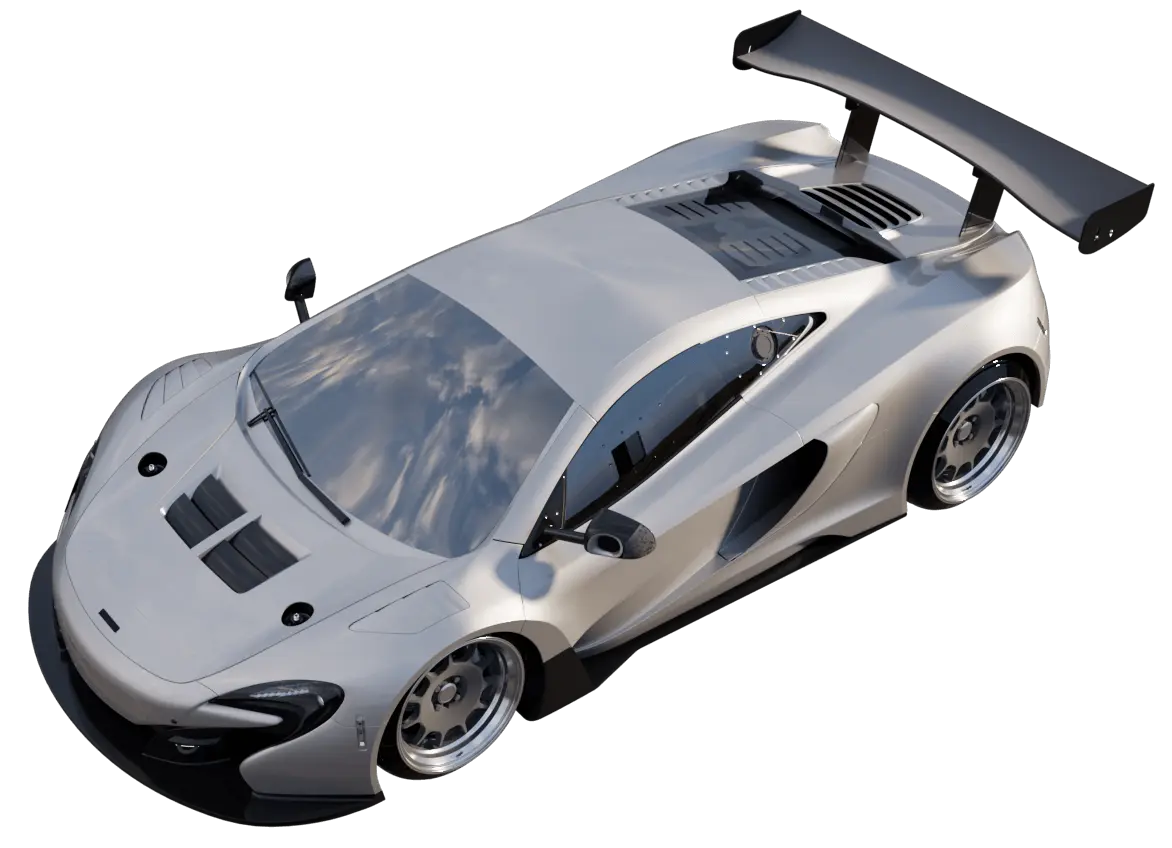
Next-level community and social features that encourage engagement, and support players becoming creators.

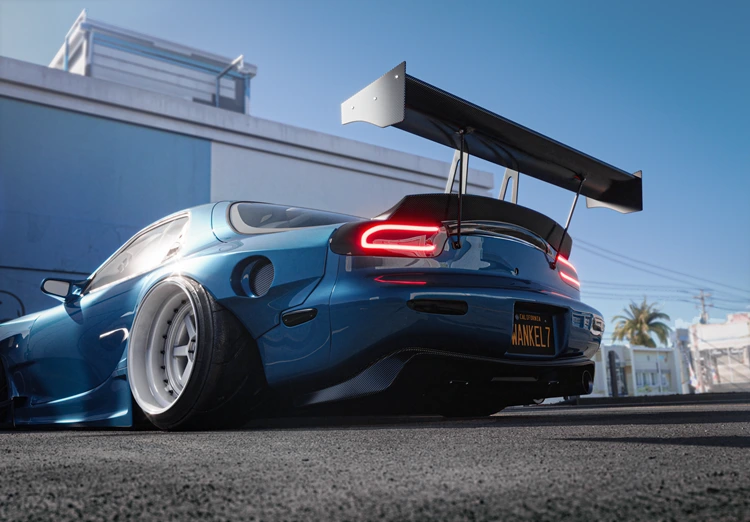
Our customization options include genuine and licensed parts and accessories with high levels of realistic tuning and personalization.
We’re building a high-stakes, live racing game where every millisecond counts.

We’re building the ultimate racing experience where players can customize, compete, and connect through authentic car culture.
We partner with top car brands to bring authentic vehicles, performance parts, and tuning options straight into the game. Every build is a true reflection of car culture, giving players an unparalleled racing experience.












The Auto Legends team has decades of collective experience working at top gaming studios, and previously built car racing games together that attracted 140+ million players. We’re back to release your next favorite racing game.






HOW TO UPDATE AUTO LEGENDS
Epic Games Store
How Players Update Auto Legends on Epic Games
By default, the Epic Games Launcher auto-updates games in your Library. When Auto Legends gets a new patch, the launcher will download it the next time you open the Epic Games Launcher (or when background updates run). Once updated, the “Launch” button appears and you can jump straight in.
If you want to make sure you have the latest version right away: Open Epic Games Launcher → go to Library. Find Auto Legends in your library (like in your screenshot). Click the three dots (…) under the game title. Select Manage → then click Verify or Update (if the update is pending). Verify checks files and pulls the newest patch. Update appears if the game hasn’t updated yet. Steam.
How Players Update Auto Legends on Steam
Steam is set to auto-update all games by default. When Auto Legends receives a new build, Steam will download it in the background the next time the launcher is open. Once the update finishes, the blue button will change to Play.
If a player suspects they don’t have the latest version yet: Go to the Library tab in Steam. Right-click Auto Legends (or Auto Legends Playtest if that’s the branch they’re testing). Select Properties… → then click Installed Files. Click Verify integrity of game files. Steam will check the local installation against the latest server build. If an update is available, Steam will automatically download it.
Players can control update settings per game: Right-click Auto Legends in the Library. Go to Properties… → Updates. Choose one of the options: Always keep this game updated (recommended). Only update this game when I launch it. High Priority: Always auto-update (downloads ASAP when an update is available).
How Players Update Auto Legends via Direct Download (PC & Mac)
Go to autolegends.com (Our official site). Click the correct button: Download (PC) for Windows. Download (Mac) for macOS. This downloads the newest installer package with the latest build of Auto Legends.
On Windows: Open Control Panel → Programs & Features, uninstall “Auto Legends.” On Mac: Drag the old Auto Legends app to the Trash. This step prevents version conflicts, but usually the new installer will overwrite the old version.
Run the downloaded installer: Windows (PC) → run the .exe file. Mac → open the .dmg file and drag Auto Legends into Applications. Follow the prompts to complete installation. The game will now launch with the latest version.
Sometimes antivirus or system security flags a new build (especially if it’s unsigned or freshly updated). Here’s what players should do: On Windows (Defender / Antivirus): If a “Windows protected your PC” message appears: Click More info → then Run anyway. If antivirus quarantines the installer: Open your antivirus → go to Quarantine / History. Restore the file and whitelist Auto Legends.
If you see “App can’t be opened because it is from an unidentified developer”: Go to System Settings → Privacy & Security. Scroll down and click Open Anyway next to Auto Legends. Confirm the Update and Launch Auto Legends after installation. Check the main menu or settings for the latest version/build number. This ensures you’re running the updated client.